Tuesday, April 8, 2014

Join Now - Free Cricut Collection!!!

Be A Consultant

Ready to become a Consultant? Let’s get started.

Do you crave creativity, relish warm relationships, or savor industry? We embrace all types, whether you’re creative-, community-, or business-minded. By becoming a Close To My Heart Consultant, you join an elite team that supports and honors what makes you exceptional.
It’s easy to join. Start by clicking on the “Let’s Get Started” link at the bottom of this page and completing the form. As part of your enrollment you will purchase the New Consultant Kit for only $99. The kit includes the basic business and creative supplies you need to start your journey off right, and the retail value of the supplies in the kit is approximately $309—a fantastic deal!
2014 Spring/Summer Idea Book New Consultant Kit

Contents of the New Consultant Kit Include:

  • Read Me First Letter
  • Spring/Summer 2014 Idea Books (qty. 10)
  • Hostess Order Forms (qty. 25)
  • Customer Order Forms (qty. 25)
  • Close To My Heart Color Swatches (W471)
  • Spring/Summer 2014 B&T Duos™ Sampler (W1127)
  • Petite Perks™ Delicate Wings Incentive Stamp Set (qty. 5) (W2028)
  • Reflections™ Scrapbook Program (9037)
  • Originals Card Confidence Program™ (9036)
  • Workshops on the Go™ Skylark Scrapbooking Kit (G1072)
  • Skylark Complements Dimensional Elements (X7177C)
  • Skylark B&T Duos™ Bulk Paper (BULK322)
  • Skylark Bulk Resin Flowers (BULK340)
  • Durables Triangle Studs (Z1928)
  • Teal Shimmer Trim (Z1918)
  • Lagoon Exclusive Inks™ Pad (Z2195)
  • Desert Sand Exclusive Inks™ Pad (Z2118)
  • Slate Exclusive Inks™ Pad (Z2173)
  • My Acrylix™ Hopscotch Alphabet Stamp Set (E1028)
  • My Acrylix™ True to Life Stamp Set (C1575)
  • My Acrylix™ Believe in Yourself Stamp Set (C1574)
  • 3" × 3" My Acrylix™ Block (Y1006)
  • 4" × 5" My Acrylix™ Block (Y1012)
  • 2" × 6½" My Acrylix™ Block (Y1010)
  • Non-Stick Micro-Tip Scissors (Z1836)
  • My Acrylix™ Stamp Scrubber (Z1782)
  • My Acrylix™ Spritz Cleaner (1778)
  • Bonding Memories™ Glue (1512)
  • Sponge (Z697)
  • Liquid Glass (Z679)
  • and Cello Bags (qty. 25) (W1152)
(Some items may not be shown. Contents are subject to change without notice.)


Receive a FREE Close To My Heart Cricut® collection!
During the month of April, when you sign up as a Consultant, you qualify for a FREE Close To My Heart Cricut® collection of your choice.
  • Cricut® Artbooking Collection
     
  • Cricut® Artiste Collection
     
  • Cricut® Art Philosophy Collection


Ready to become a Consultant? 

LET'S GET STARTED!!!

Saturday, March 1, 2014

Using CTMH's "Studio J" to Express Print Your Digital Photographs!

As many realize, digital scrapbooking is the next-great thing down the pike in preserving your memories. And Close To My Heart has been an industry leader in the field, with it's STUDIO J service.  

However, many of my friends and followers are still diehard traditional scrapbookers, who only want the ability to print their digital photographs to size for use in their albums and hand-embellished layouts.  There are many services that provide standard-sized photographs (4x6", 5x7", 8x10"), but what if you want to print your photos in unusual sizes to fit your Picture My Life, Project Life, or brag albums?

Consider using Studio J's new Express Print service, where you do a layout of abutting photographs, then print/cut those pictures that you have pre-sized to fit YOUR need!

To do this, all you need is your digital pictures, a computer and internet access to use the Studio J software -- and this tutorial where I'll walk you through how to get the most out of your Express Print project.  

It's EASY and FUN ... and best yet, in March, all Studio J layouts (including Express Print) are discounted to just $5.00 (plus tax/shipping/handling) for two 12x12" pages, with as many pictures as you can fit on those 288 square inches!! (The regular price is $6.95 plus t/s/h.)  


Step 1:  Let the Fun Begin with Studio J!
Go to: http://perfectfinishesalways.studioj.com.  This is your opening screen, shown below:


Step 2:  Create an Account – It’s free and easy!
Here is what the screen looks like, and what you’ll need to complete:


Step 3:  Welcome to Studio J!  Here you’ll find ways to create or open your existing projects (top right click), start a new project (middle right click), or how to buy/print your projects (bottom right click):

Here is what the screen looks like:

 
Step 4:  Today, I want to show you how you can use your Studio J “layouts” as a printing service for your digital photographs by using what is called “Express Print”.  You can arrange the photographs in any size configuration that fits on two 12” x 12” digital pages and, during the month of March, have those photographs printed for just $5.00 for each two-page spread (Regular retail: $6.95).  

 
To start, click the middle link: “Create a new project”
You’ll see that the sample project is named: “Pictures for PML” – that’s Picture My Life™, Close To My Heart’s newest product for scrapbooking-on-the-go.  

With the Picture My Life™ specially-designed layouts produced with sectioned page protectors, your photos can be full sheet (12” x 12”), or 4”x6” (horizontal  or vertical) and/or 3”x4” (horizontal or vertical).  

Here are the designs of the sectioned page protectors currently available in Picture My Life™:

Design 1 – 12 x 12” page protector: Full sheet.  Available as top loading or side loading to fit in your
D-ring or post-bound albums, in packs of 10 or 25;
also available to fit your strap-system album,
in side loading value packs of 25.
 

Design 2 – 12x12” divided into 6 sections,
each 4”h x 6”w (horizontal photos).
Holds 12 photos (using both sides)

Design 3 – 12x12” divided into 4 sections
that are 6”h x 4”w (vertical photos),
plus 4 sections that are 3”h x 4”w (horizontal photos).
  Holds 16 photos, using both sides.
Design 4 – 12x12” divided into 4 sections
that are 4”h x 6” wide (horizontal photos),
plus 4 sections that are 4”h x 3”w (vertical photos).
Holds 16 photos, using both sides.
Design 5 – 12x12” divided into 3 sections
that are 6”h x 4”w (vertical photos),
plus 6 sections that are 3”h x 4”w (horizontal photos).
Holds 18 photos, using both sides.

In addition, you can expand the possibilities of how your pages look and how many photos each page can accommodate, by using Close To My Heart’s unique Flip Flaps™. 

Flip Flaps™ are individual protectors with an adhesive strip, made in convenient sizes to attach over your page protectors to add more photos or journaling to conventional layouts.  You can also use them with your Picture My Life™ albums in the same way! 


So be sure to design your Studio J™ Express Print pages to include some photos in the Flip Flap™ sizes you want to use in your albums. Those sizes are:


Step 5:  Upload your pictures. 

 
Step 6:  The sample shows uploaded pictures.

See the tab in the bottom right that says “CONTINUE”?  Click that!


Step 7:  To use the Express Print feature of Studio J™, you’re going to want to design your own Custom Layout. So click the bottom link, “Create Your Own Custom Layout” when the Select A Layout Type screen appears. 
Step 8:  Now the next thing that will happen is that Studio J will load its kits.  For the purposes of “Express Prints,” you’re not going to be using a kit. However, just allow Studio J to load the new kits. Your screen will look like this:


Step 9:  Pick any paper that suits you – it doesn’t matter, because for this, we’re not using the paper. Pick one and you’ll be taken to layout PATTERNS, and your screen will look like this:


You’ll notice that all of the print patterns are shown alphabetically. I want you to scroll down to the pattern that is titled: “NO LIMITS”.  Click on it:


Step 10:  It’s kind of silly here, but it’s asking you to pick whichever “mix” on blank pages – and you’ll see no mix, like this:


That’s okay.  Double click on any one of them – I usually pick door #1 (far left).  Here’s what your screen will look like next:

Step 11:  Next you’re going to want to create your “photo wells”. Click on the first tab underneath all of your photos on the left – the one that says Text & Photo Areas:


See that bottom box on the left column that’s marked Photo Area?   While your cursor is over that box, left click and hold to drag a box onto your upper left side of your page one (left) as I did here:


You’ll see that there is an operations box that opened up next to the space for the photograph that you’ve placed.  Here, this is a horizontal 4x6” photo.  You can change the size by simply changing the dimensions in that box (typing the numbers), or by grabbing the arrow to the lower right of the photo, and dragging it to whatever size you want. 


Your photos don’t need a mat if you plan to trim them for a layout or matting on paper, but if you want to add a mat to ensure your size, choose the drop down menu in the Operations Box and pick how wide you want your mat.

Here is how it looks if you chose a 1/16” mat.  Note that a color box pops up, so you can change the color of the mat to whatever you pick, including white if you just want a trim space.


Continue filling your layout with photographs of your desired shapes/sizes, simply by grabbing another photo box from that left column and dragging it into position on your layout. Resize them manually by grabbing the drag arrows, or be sure your sizes are a perfect fit for your Picture My Life™ spaces or your Flip Flap™ pockets by typing in your desired dimensions.  

Remember, Picture My Life™ only uses 4 x 6” or 3 x 4” sizes (either horizontal or vertical), while there are wider varieties of sizes available in Flip Flaps. 

Another hint:  When you’re dragging your photos into place on your layout and you want to snug up the pictures next to each other, remember that your arrow keys on your keyboard can be used to move the photographs too, one little space at a time.  This makes it easy to ensure you’re using all of the printable surface, and maximizing your dollars when printing these pages. 

If you’d rather save some of the space for titles or Journaling boxes that will print along with your photographs, grab those boxes instead.  These are handy to print out to use on your traditional layouts, or made to size with your Picture My Life or Flip Flaps. 
OK, the layouts are done and now it’s time to drop the photographs in place.

Here are the sample photographs that are being used to complete layouts, along with a title:

Step 12:  Drop in your photographs.
Go back to the upper left-hand column and click on where it says Photos.  This will bring in all of the photographs you have downloaded for this project.  (You CAN add more at any time!)  

Move your computer’s cursor over to the photo you want, and left click and drag the photo into the space you want.  

You’ll see on the Operations Box that opens with the photograph that you can increase the scale of your photograph.  When you increase the scale, the center focus of your photograph may now be out of the print area.  Do you see that in the middle of the photograph there is a handprint?  Move your cursor atop of that handprint and left click/hold to drag the portion of the photograph into the print space. 

For example, here is the sample picture placed at regular scale:


Here it is scaled to 250% before I’ve grabbed the hand to move it:

Here it is after I’ve moved it into my print position:


There are also all sorts of special effects you can apply to your photograph. For example, here is one of the sample picture that has had a Sepia filter applied, and the photograph has been rotated 60 degrees:


Here it’s flipped horizontally, and converted to Black and White:


….and if that isn’t sweet enough, you can also edit any of your images, just by clicking the Edit Photo box (third from the right, top, in the Operations Box) to take the photo you’re working on directly to the editing function:
For example, if I wanted to make this little Munchkin into a Leprechaun, I could toy with the saturation and hue:

Not to worry, there are UNDO and REDO buttons in the upper left of the Image Edit screen!  
There you have it, I’m done, in twelve easy steps!


When you’re ready to purchase your layouts, click “PURCHASE” in the upper right hand corner, and your project menu will appear.  To the right of the project menu, you’ll find “Add to cart”. Each two-page layout is currently $6.95 but is on sale throughout March for just $5.00.  And best yet – whether you buy four layouts (the minimum order) or fifty -- they ship for a flat $13.95!

Sunday, February 2, 2014

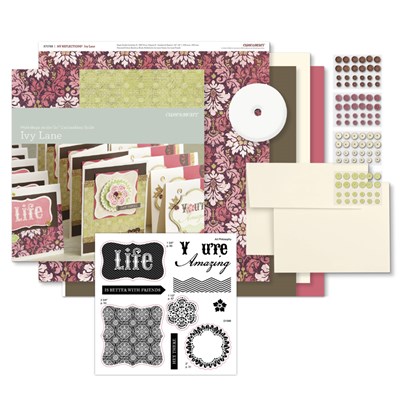
Ivy Lane Card Making Kit

As promised, here is my completed Ivy Lane card kit. It went together quite quickly and I love, love, LOVE the new gold shimmer trim! Cocoa, Pear and Hollyhock are the featured colors and are just gorgeous together


I never used to be a glitter girl because I hated the mess that happened every time a glitter container was opened. Well I am a hater no more! No I can have the look without the mess. Between the new colors of shimmer trim an our glitter paper packs I am in glitter glitz heaven.

If you'd like to make a set of your own 15 cards, head on over to my shopping site HERE and order yours.
Want to make a party out it? Call me at 780-307-8586

Love Is in the Air

February is the month for love! The 2014 Spring/Summer Idea Book is out and I know you're going to fall in love, like I did, with all the new products. The 7 new paper packs are so trendy! Use them for your pages, cards or multimedia projects and you will have cherished works of art.

Check out the cute Wild About Love Stamp of the Month - page link to your right - Lovely stamp set suitable for February project for all the women and men in your life.

The February special is all about our new Embossing Folders! Check them out to your right. They are the larger 5x7 size and they work wonderfully in the Cuttlebug machine. I'm excitedly awaiting my order to come in so I can make some lovely projects with those!

Head on over to My Store to have a look - you will fall in love instantly!

I'm currently working on one of the new card kits - Workshops On The Go™ Ivy Lane Cardmaking Kit.This kit includes a few of the newest embellishment - gold shimmer trim and the sequin dot assortment - so fun to work with. Here is what is included in the kit:

 Included in the kit:
1 – My Acrylix™ Ivy Lane Cardmaking Workshop Stamp Set (D-size)
2 – Ivy Lane B&T Duos™ Papers
4 – Cardstock Sheets (1 Cocoa, 2 Colonial White, 1 Hollyhock)
15 – Colonial White Cards & Envelopes
1 – Sequin Dot Assortment (24 each of 4 colors)
1 – Gold Shimmer Trim (5 yards)
1 – Instructional Brochure
Some basic tools you may already have, such as inks, stamp blocks, or tools are needed to complete this project.

I will post pics of the finished cards when I complete them. In the meantime here is a featured video using the fabulous Cricut® Artbooking cartridge for your creative please!

Use the Cricut® Artbooking cartridge to create striking scrapbook pages for your loved ones, from happy couples to loving families to cherub–like babies and so much more! Plus, learn how to create dramatic backgrounds to perfectly complement your love-struck photos.


Sunday, January 5, 2014

Use It Up Challenge Card

I have a challenge on my Facebook Page to make a Pop-up Box Card using only 2013 CTMH items. I challenged myself to use paper and items that aren't associated with Valentine's day on first glance. I love how this came together!

Here is my creation:


I used Blush card stock as my base and the Frosted Paper Pack for the decorating squares. I didn't care for this paper pack when the last idea book came out but the more I used it the more I love it. I'm finding that the designs really are multi-seasonal. This makes good value on a paper pack.

The center heart and sentiment banner are from the stamp set Adore (A1123). I stamped the heart in Blush then fussy cut it out. The sentiment was stamped onto the zipstrip in Twilight.

The paper flowers are from the retired Just Blooms Paradise. I added some Pink Glitter Gel to the centers and spread it across to tone down the Saddle colored flower so that it would blend in and compliment the display.

The two butterflies are from the retired Just Blooms Flutter pack. I sponged Creme Brulee and Blush onto one of them then ran the other across my Blush ink pad and used my finger to blend the ink.

The front medallion was created using a piece of Slate Satin Polkadot Ribbon twisted and adhered with a glue dot. The center piece is from the retired Brocade Assortment - lots of glue dots to hold his heavy item! I then cut red netting into squares, bunched them up in the center and placed them around the ribbon/medallion. I hesitated to use the red to begin with however the ribbon tones the color down enough to coordinate in with the brighter flowers.

Now it's your turn. What paper and embellishments do you have laying around to combine to create your piece of art?

Saturday, January 4, 2014

National Papercrafting Month Cloud Nine Cardmaking Kit

Mystery Hostess & Cloud Nine

This month I'm doing a Mystery Hostess event on Facebook. Head on over to my page and join the fun!

While there, don't forget to enter my creativity contest TODAY!
Win a D-size stamp set.